
Edit Text in Screenshots with AI
Point at any label in an app or website capture, type the replacement, and the new wording is typeset right into the interface — matching font, weight and alignment, with the status bar and layout frozen.
Upload a screenshot containing UI text
Click to browse or drag & drop — the crop tool opens automatically
Rewrite Any Label Inside a Screenshot — Pixel-Perfect
Screenshots freeze a moment of a UI, which is exactly why they go stale: the button gets renamed, the price changes, the feature ships in a new language. Instead of re-capturing the screen, edit the capture. Upload the screenshot, name the label as it reads now and what it should read, and GPT Image 2 re-typesets it inside the interface — same UI typeface, same weight, same spacing — while the status bar, icons, device frame and layout hold perfectly still. What comes out is a screenshot that looks like it was taken after the change shipped.
- Interface typography is matched automatically — system fonts, weights and alignment carry over to the new label.
- Status bars, nav bars, icons and spacing stay untouched; only the words you name are redrawn.
- The practical workflow behind App Store localization, marketing mockups and documentation updates.
Edit screenshot text — before & after example
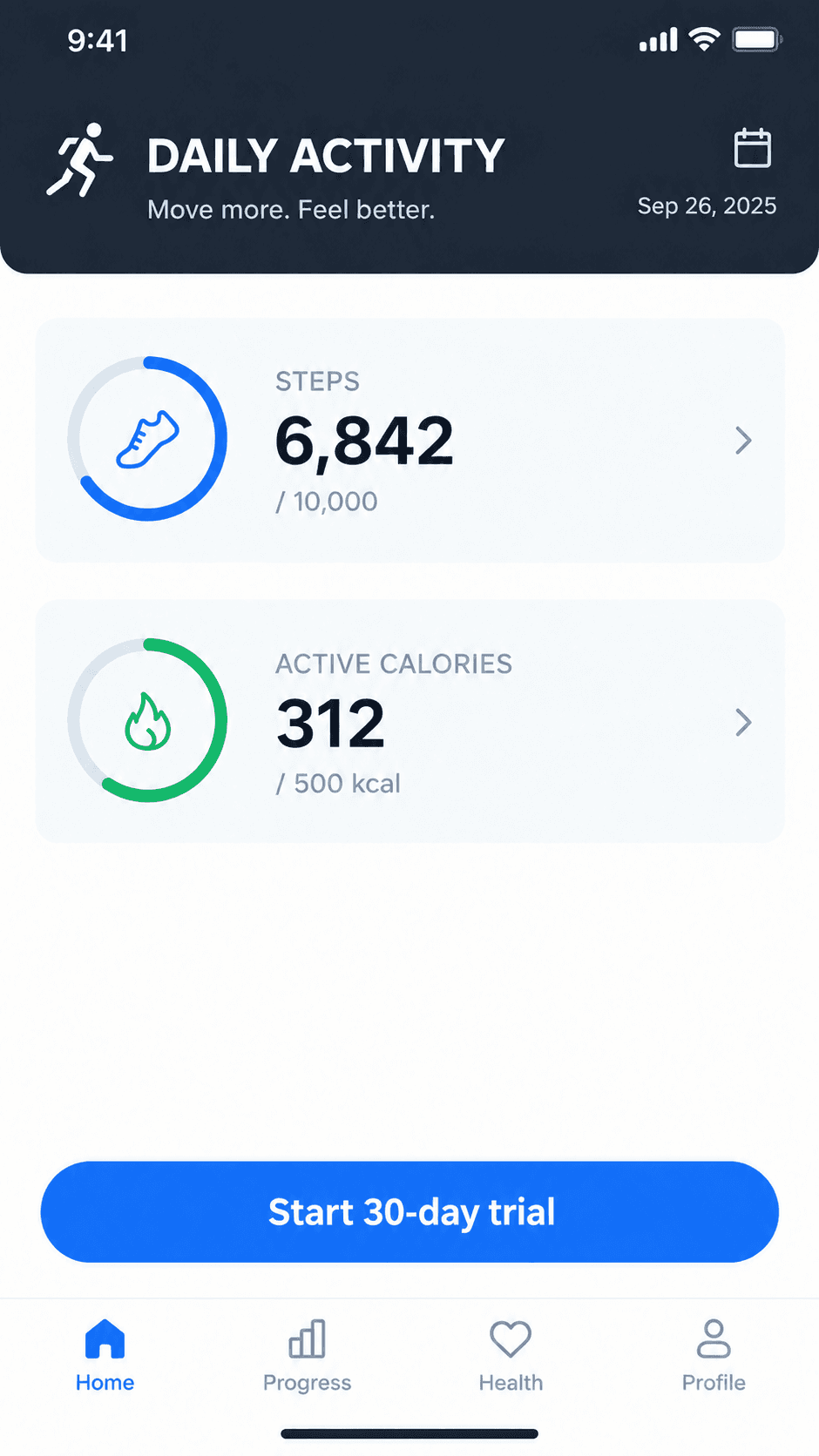
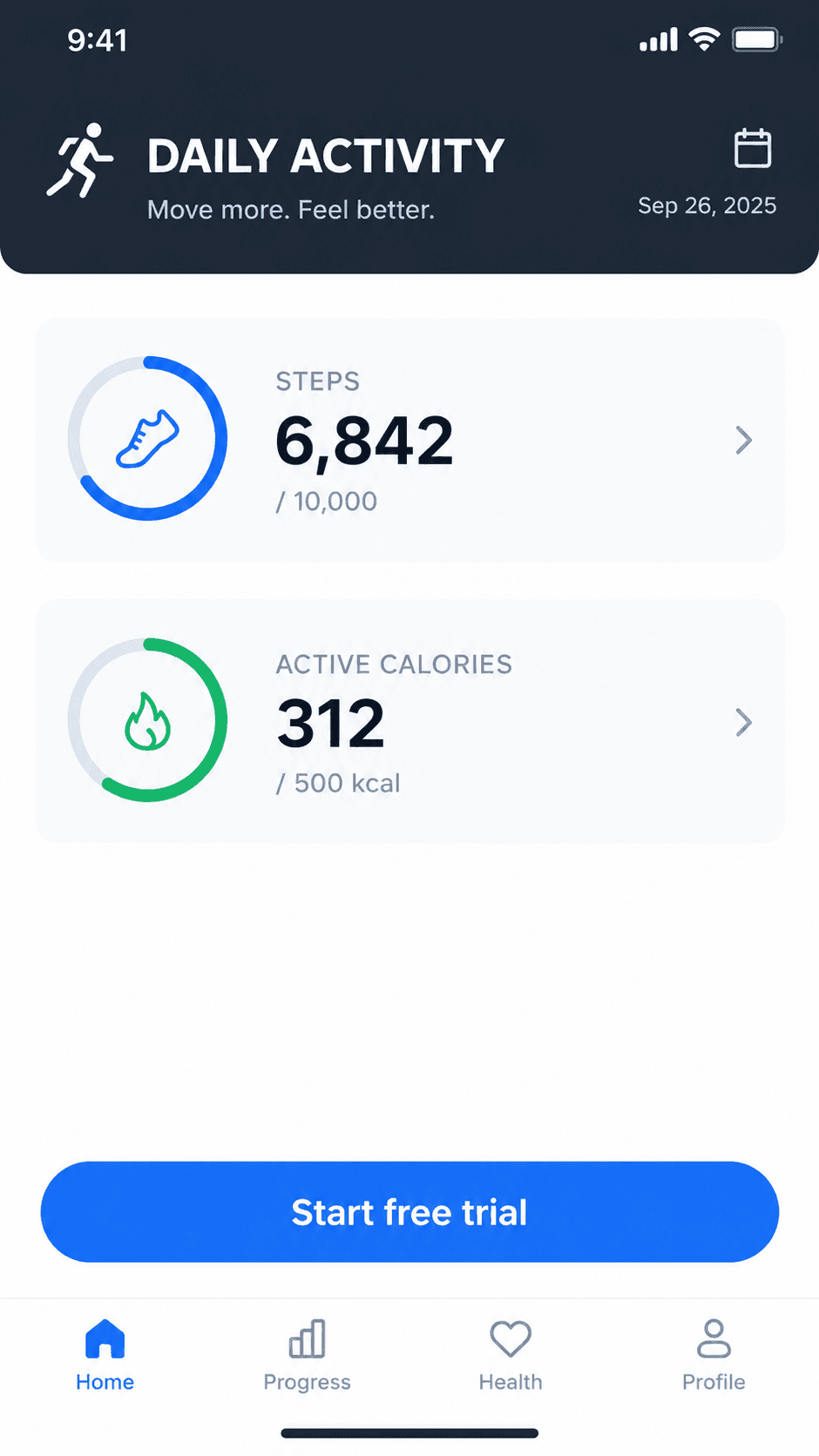
Drag the slider. The button label changes while the interface font, cards and layout stay pixel-perfect.
Built for Interface Text
UI lettering is the strictest text-editing test there is — wrong by a pixel and everyone notices. This editor treats it as the main case, not an afterthought.
System-Font Fidelity
Interface screenshots live on sans-serif system fonts at small sizes, where weight and spacing are instantly recognizable. The model reproduces those characteristics on the replacement label, so a renamed button or menu item keeps fitting the design language of the app.
Chrome Stays Fixed
The edit scope protects everything that makes a screenshot credible: the status bar clock and battery, the notch or home indicator, tab bars, toolbars and icon grids. Reviewers compare before and after and find one difference — the words you changed.
Localization at Screenshot Speed
One capture session can serve every market. Translate the visible labels market by market with this editor instead of rebuilding staging environments and re-capturing each screen per locale.
Mockups Before the Build Exists
Marketing needs the screenshot today; engineering ships the feature next month. Edit a current capture to show the future state — new menu name, new plan tier, new badge — and keep the launch calendar honest.
Documentation That Keeps Up
Help centers drift from the product when screenshots lag behind. When a label changes, fix the capture in seconds instead of scheduling a re-shoot of the whole tutorial.
Honest-Use Guardrails
The tool is for your own captures — localization, mockups, docs and demos. Falsifying conversations, transaction records or timestamps is refused, so the editor stays useful for legitimate teams.
How to Edit Text in a Screenshot
From stale capture to shipped-looking asset in three steps.
Upload the Capture
PNG works best for crisp UI edges — up to 24MB. Crop to the window or panel you are changing if the full desktop adds noise around the target text.
Name the Label and Its Replacement
Type the exact current label (e.g. 'Subscribe') and the new one (e.g. 'Get Started' or its translation). Notes can cover secondary labels in the same pass.
Generate and Compare
The label is re-rendered in place with the surrounding UI untouched. Compare at 100% zoom, download, and run a second pass on any other labels you need to change.
Screenshot Text Editing — FAQ
Fix the Screenshot, Skip the Re-Capture
Rename, translate or update any label inside a UI capture while the rest of the interface stays frozen. Free credits to start.